

What is Apple Pay?

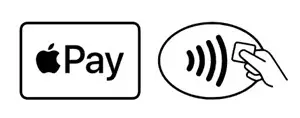
Apple Pay is a digital wallet on your Apple devices. It securely stores your credit and debit card information allowing you to pay for goods and services online and in person directly through your iPhone, Apple Watch, iPad and Mac. If a store accepts Apple Pay, you'll likely see one of these symbols at checkout.

Benefits of Apple Pay with Huntington

Set up in minutes

Most Apple devices already have Apple Pay built in, no downloads needed. Just open the Wallet app, add your Huntington debit or credit card, and you’re ready to shop.

Contactless payments

Skip the buttons, cards, and cash. Apple Pay lets you check out with a simple tap. It’s fast, easy and secure.

Accepted almost everywhere

Use Apple Pay at over 85% of retailers across the U.S.1, including Trader Joe’s, Starbucks and McDonald’s. Just look for the Apple Pay logo at checkout.

Privacy built in

When you pay with Apple Pay, your card number stays private. Apple uses a unique device-specific number and transaction code, so your information stays secure and never gets shared with merchants.

How to use Apple Pay

With your iPhone

  1. Look for the Apple Pay logo or contactless payment icon at checkout.
  2. Unlock your iPhone.
  3. If your iPhone uses Face ID, double-click the side button to activate Apple Pay.
  4. When your default card appears, glance at your iPhone to authenticate, or enter your passcode.
  5. If your iPhone uses Touch ID, rest your finger on Touch ID to activate Apple Pay.
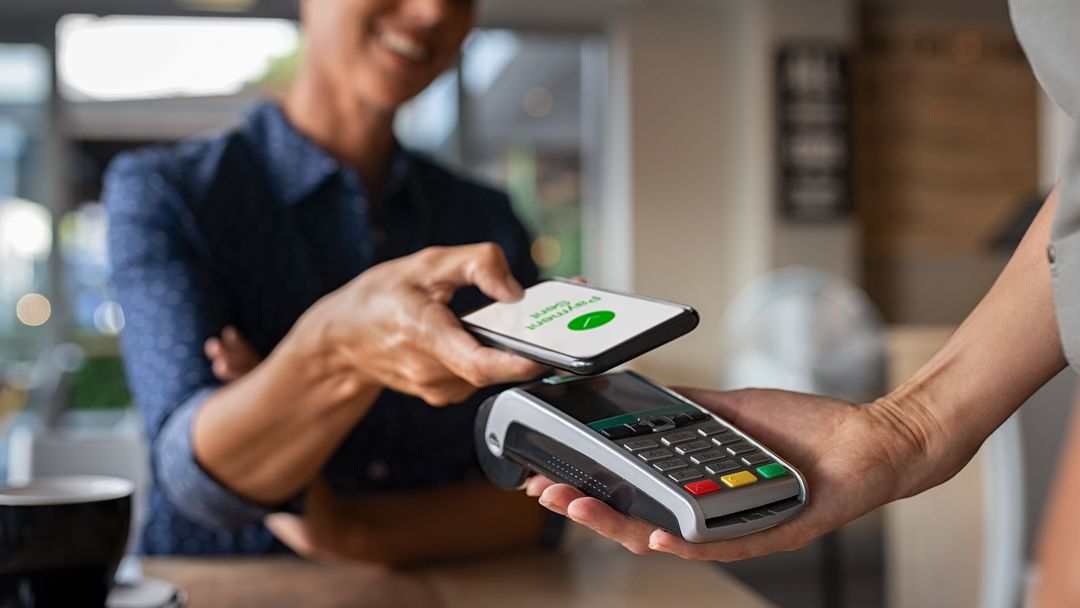
  6. Hold the top of your iPhone near the card reader at the point-of-sale terminal until you see Done and a checkmark on the screen.

With your Apple Watch

  1. Look for the Apple Pay logo at checkout.
  2. Double-click the side button.
  3. Your default card should open automatically. Scroll down if you’d like to choose another card.
  4. Hold the face of your Apple Watch near the contactless reader at the point-of-sale terminal until you feel a gentle tap and hear a beep.

Online or in apps

  1. To make your purchase with Apple Pay, tap one of the images.
  2. Apple Pay will automatically use your default card. To pay with a different card, tap the Next button or the Expand Menu button next to your default card.
  3. Verify your billing, shipping, and contact information and update if necessary.
  4. Confirm the payment on your iPhone by double-clicking the side button, then use your Face ID or passcode. If your iPhone doesn’t have Face ID, confirm the payment by using Touch ID or your passcode.

Apple Pay FAQs

Apple Pay is accepted at over 85 percent of retailers1 in the United States. If you’re out shopping and unsure, you can always ask an employee or look for the Apple Pay logo at checkout.

  1. On your iPhone, open the Wallet App (if you don’t already have it, download it from the App Store).
  2. Click Add Credit or Debit Card.
  3. Click Next.
  4. Scan your card or add details manually.
  5. Your bank or card issuer will verify that your card is eligible for Apple Pay.
  6. Once verified, click Next.

Unfortunately, there can always be some level of risk when using credit or debit cards. That said, Apple has built-in security features to help keep your information safe. Every purchase uses a device-specific number and unique transaction code, meaning your card number is:

  • Never stored on your device or Apple servers
  • Never shared with merchants

Transactions also require authentication through Face ID, Touch ID, or a passcode, and your card number and identity aren’t stored on your device. In the event your device is stolen, a purchase can’t be made through Apple Pay without authentication.

No, Apple does not charge fees for using Apple Pay.

Related resources

Checking Basics

Debit card vs. credit card: What’s the difference?

Debit cards use your money. Credit cards use a line of credit. When you pay with a debit card, the money comes straight from your checking account. You’re spending what you already have. With a credit card, you’re borrowing money and paying it back later, often with interest.

Checking Basics

How to close a bank account & checking account

Switching banks doesn’t have to feel like a hassle. With a few thoughtful steps, you can move your money with confidence—and start fresh with a bank that’s built around you.

Contact Us

We're here for you—online, by phone, or in a branch.

Automated assistance

Quick answers when you need them.

Speak with us

We're here to help.

Find a branch

Find your nearest Huntington branch.

Disclosures

1Apple Pay. Retailers. Apple. n.d. “Apple Pay.” Accessed December 12, 2022. apple.com/apple-pay

Apple®, the Apple logo, iPhone®, iPad®, Apple Pay®, Touch ID®; and Face ID® are trademarks of Apple Inc., registered in the U.S. and other countries.

Mastercard and Mastercard Brand Mark are registered trademarks of Mastercard International Incorporated.