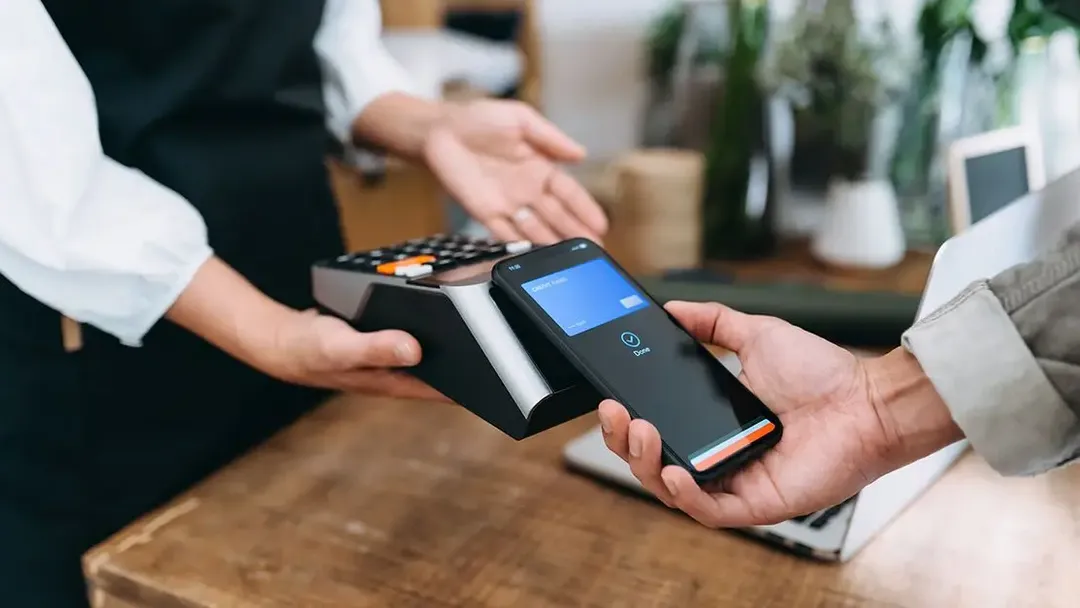


Follow these steps to set up Apple Pay

How to set up Apple Pay on your iPhone

  1. On your iPhone, open the Wallet app (if you don’t already have Apple Wallet, download it first from the app store).
  2. Tap Add, then Debit or Credit Card to add a new card.
  3. Tap Next.
  4. Scan your card or add details manually.
  5. Tap Next.
  6. Your bank or card issuer will verify that your card is eligible for Apple Pay.
  7. Once verified, click Next.
  8. You can then add up to eight cards to Apple Pay (optional), and select which card is your default card.

How to set up Apple Pay on your Apple Watch

  1. On your paired iPhone, open the Apple Watch App.
  2. In the My Watch tab, click Wallet & Apple Pay.
  3. Tap Add, then Debit or Credit Card to add a new card.
  4. Tap Next.
  5. Scan your card or add details manually.
  6. Tap Next.
  7. Your bank or card issuer will verify that your card is eligible for Apple Pay.
  8. Once verified, click Next.

How to set up Apple Pay on your Mac or iPad

  1. Open Wallet settings on your Mac or iPad. On your Mac with Touch ID, go to System Preferences > Wallet & Apple Pay. On your iPad, go to Settings > Wallet & Apple Pay.
  2. Tap Add, then Debit or Credit Card to add a new card.
  3. Tap Next.
  4. Follow the steps on the screen to add a card.
  5. Tap Next.
  6. Your bank or card issuer will verify that your card is eligible for Apple Pay.
  7. Once verified, click Next.

Once you've completed your Apple Pay setup, be sure you understand how to use Apple Pay before making a purchase. You'll also want to know who accepts Apple Pay since not all stores, apps and websites accept it.

Benefits of Apple Pay with Huntington

For most Apple devices, Apple Pay is already preloaded, so no downloads are needed. Just add your Huntington debit or credit card information to the Wallet app and start shopping. To use Apple Pay, read our instructions on how to set up Apple Pay.

Convenient, simple setup

For most Apple devices, Apple Pay is already preloaded, so no downloads are needed. Just add your Huntington debit or credit card information to the Wallet app and start shopping. To use Apple Pay, read our instructions on how to set up Apple Pay.

Enjoy contactless payments

Using Apple Pay in stores helps you avoid touching buttons and terminals, handling cards, or grabbing cash, creating a seamless shopping experience.

Shop at millions of retailers

Apple Pay is accepted at over 85 percent1 of retailers in the United States including Trader Joe's, Starbucks and McDonalds. If you’re not sure whether Apple Pay is accepted, look for the Apple Pay logo at checkout. Learn more about who accepts Apple Pay.

Private, secure payments

When you make a purchase through Apple Pay, Apple uses a device-specific number and unique transaction code, so your card number is never stored on your device, and it’s never shared with merchants.

Related Resources

Checking Basics

How to check your routing number

Have you ever wondered how and where you can find your routing number? We detail four ways, with and without a check, to find your routing number.

Checking Basics

Benefits of having a checking account

We’ve highlighted six benefits that a checking account can provide to help you better manage your money today, tomorrow, and into the future.

Checking Basics

How to order checks and checkbooks online

Not sure where or how to order checks? We have three easy ways to order checks: online, by phone, or at a branch.

Contact Us

We're here for you—online, by phone, or in a branch.

Automated assistance

Quick answers when you need them.

Speak with us

We're here to help.

Find a branch

Find your nearest Huntington Bank branch.

Disclosures

1 Retailers. Apple. n.d. "Apple Pay." Accessed December 12, 2022.

Apple, the Apple logo, iPhone®, iPad®, Apple Pay®, Touch ID® and Face ID® are trademarks of Apple Inc., registered in the U.S. and other countries.

Third-party product, service and business names are trademarks/service marks of their respective owners.