Huntington Heads Up® alerts

Real-time updates, your way

Choose the alerts that matter most, like balance changes, payment reminders or unusual activity. Get them by text, email or push notification 1.

Spend Analysis

Gain a clearer view of your spending habits

Track how much you're spending and where you're spending it, in categories like groceries and entertainment. We'll organize your transactions so you can easily identify patterns and make adjustments wherever you see an opportunity.

Spend Setter℠

Stay on track with realistic spending limits

Plan ahead with customizable monthly spending limits for categories like dining, shopping or entertainment. When you’re close to your limit, we’ll send an alert so you can adjust before overspending.

Look Ahead Calendar℠

Know what’s coming before it hits your account

See upcoming transactions, including income and payment patterns, before they happen. With an understanding of what’s ahead, you can manage cash flow and avoid surprises, making it easier to stay on track with your goals.

Huntington Mobile Banking App

Mobile banking, made thoughtful

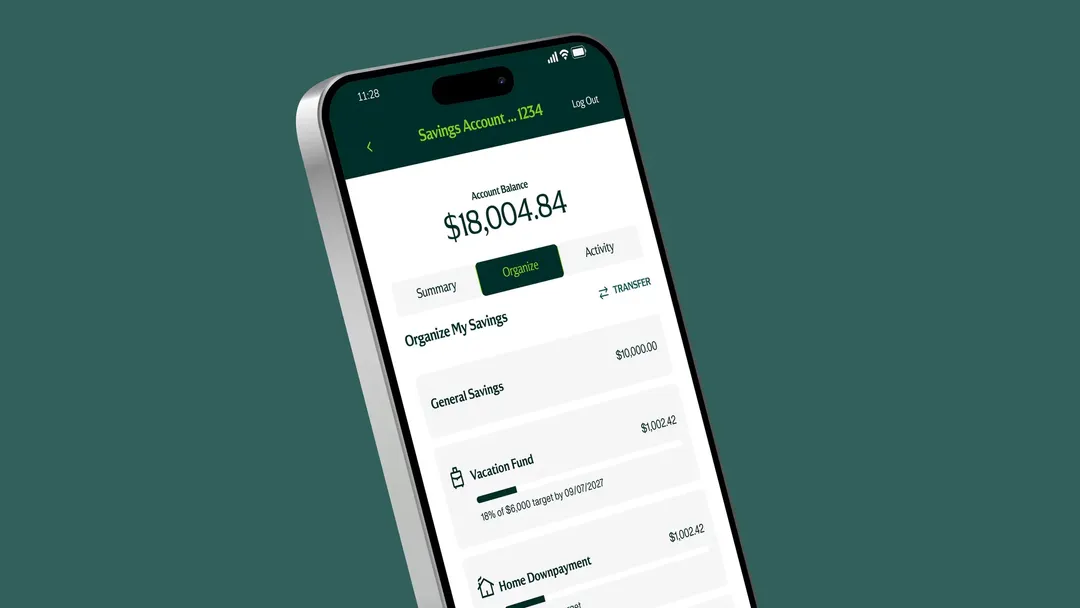
Manage your money on the go—check balances, pay bills, and transfer funds, all from your phone.

Google Play StoreApple Store

Digital Budgeting Tools FAQs

Spend Setter℠ FAQ

Spend Setter℠ lets you set budgets to track what you’ve spent and how much you have left to spend in a given month. You can view amount spent to date, amount left to spend, percentage of budget spent and number of days left in the month. Spend Setter includes transactions from your Huntington checking and credit card accounts.

If you don’t use the Spend Setter℠ tool within the first 60 days of having access, budgets will be created for your highest three spending categories based on your monthly averages. To edit these budgets, click View Budgets.

Spend Setter℠ includes transactions from your Huntington checking and credit card accounts.

You can change a budget as often as you like. Keep in mind that changes to the budget amount may affect the status of your budget.

The color of the budget bar will indicate if you are on track (green), off track (yellow) or already over budget (red). In the future, an alert will be available to tell you when your nearing or over your budget. You can also sign up to receive a Huntington Heads Up® by email, text, or push notification to let you know when you're nearing or over your budget. If you are already enrolled in Heads Up alerts, you can also set up to receive Heads Up for your budget activity. Go to Alerts and choose Manage Alerts. Under the Manage Alerts section, choose Tips & Tools. Then select Edit Alerts and scroll down to Budget Activity, where you can choose your preferences for Spend Setter℠. Message and data rates may apply. If you are not yet enrolled, visit the Alerts tab in the top navigation and choose Enroll in Alerts. Follow the prompts to enroll. Once enrollment is complete, complete the Manage Alerts steps above to set up your Spend Setter alerts.

Your budgets reset each calendar month. To view the bar graph that shows your average monthly spending for the last 12 months for a particular budget, click on that budget to view.

Spend Analysis FAQ

Spend Analysis tracks how much you're spending, and exactly where you're spending it, in categories like groceries and entertainment. We'll analyze your expenses so you can easily see exactly where your money is going.

For personal accounts, Spend Analysis includes transactions from your Huntington checking and credit card accounts. For business accounts, Spend Analysis includes transactions from your Huntington checking, money market, credit card and credit line accounts.

Do you have a Huntington checking account? Then log into The Hub to turn Spend Analysis on.

Only your Huntington accounts and credit cards are included.

When you make a purchase using your debit or credit card, Spend Analysis places that purchase in an existing category, such as Groceries, Education, Home and more.

For your convenience, each transaction is automatically assigned to a category. To reassign a transaction, follow these easy steps:

  • Click on a transaction from the line-item list. A Transaction Detail window will pop up. (Note: Pending transactions cannot be reassigned).
  • Under Category, click Edit and select a new category.
  • Answer Yes, Create Rule to always categorize this way, or No, Apply Once for one-time only.

Yes, you can hide transactions so they aren’t included in the Spend Analysis or Spend Setter tools. Click on a transaction to bring up the Transaction Detail window, and check Hide this transaction from financial tools.

To see your spending for previous months, click the View Analysis button. On the larger Spend Analysis view, you can change the date range, dive into categories and more. You can also switch from pie chart to bar graph to table view and roll over visual charts to see amounts and percentages by category.

With Spend Analysis, you can see up to two years of spending and income history to better understand your habits. And, the Spend v. Income feature within Spend Analysis provides you with an easy-to-read, side-by-side comparison of money coming in and money going out. You can compare your cash flow for the past 12 months. All of this gives you the ability to make informed decisions about your money.

Look Ahead Calendar℠ FAQ

The Look Ahead will help you see upcoming transactions — including what you scheduled in Bill Pay before they happen. Add patterns of your own for a closer look at what’s coming in and what’s going out.

For personal accounts, Look Ahead Calendar℠ includes one Huntington checking account of your choosing. The default account is the one you use for Bill Pay, if applicable. For business accounts, Look Ahead includes checking, savings, money market, credit card and credit line accounts.

Look Ahead Calendar℠ displays up to two months of scheduled transactions and patterns from today’s date. The tool does not show you past transactions; visit your account details for those.

Look Ahead Calendar℠ captures any transfer or bill payment you schedule. Not every repeat transaction is scheduled in Bill Pay. Add a pattern to show upcoming paydays and bills.

You can add a scheduled transaction by setting up a recurring transfer on the Transfers page or a recurring payment using Bill Pay. You can click Manage Calendar to add income and expense patterns that you want to track.

You can edit or delete a scheduled transaction anytime by editing the transaction on the Transfers page or Bill Pay page.

To edit a pattern, click Manage Calendar. Find the pattern and click Edit to open the Edit Pattern window.

You can delete any pattern you’ve manually created in the Edit Pattern window. You can also hide any pattern from the calendar view. For instance, if you pay for swim lessons during the summer, you can hide this pattern during the winter.

Disclosures

Spend Setter℠ and Look Ahead Calendar℠ are service marks of Huntington Bancshares Incorporated.

1 Message and data rates may apply.

Apple and the Apple logo are trademarks of Apple Inc., registered in the U.S. and other countries.

Third-party product, service and business names are trademarks/service marks of their respective owners.